ON THIS PAGE
1 Create your account
Go to haohunter.co.ke and click Sign Up. Choose Landlord as your account type — this matters, since a tenant account can't list properties.
Fill in your name, email address, phone number, and a password (at least 8 characters), then submit. You'll be signed in right away.
2 Confirm your email
Check the inbox for the email address you signed up with — you'll get a link to confirm it's really yours.
3 Complete your profile
From your dashboard, click Complete Your Profile. Fill in every field — full name (exactly as on your ID), gender, date of birth, phone, WhatsApp number, email, National ID or Passport number, KRA PIN, county, sub-county, town, and physical address.
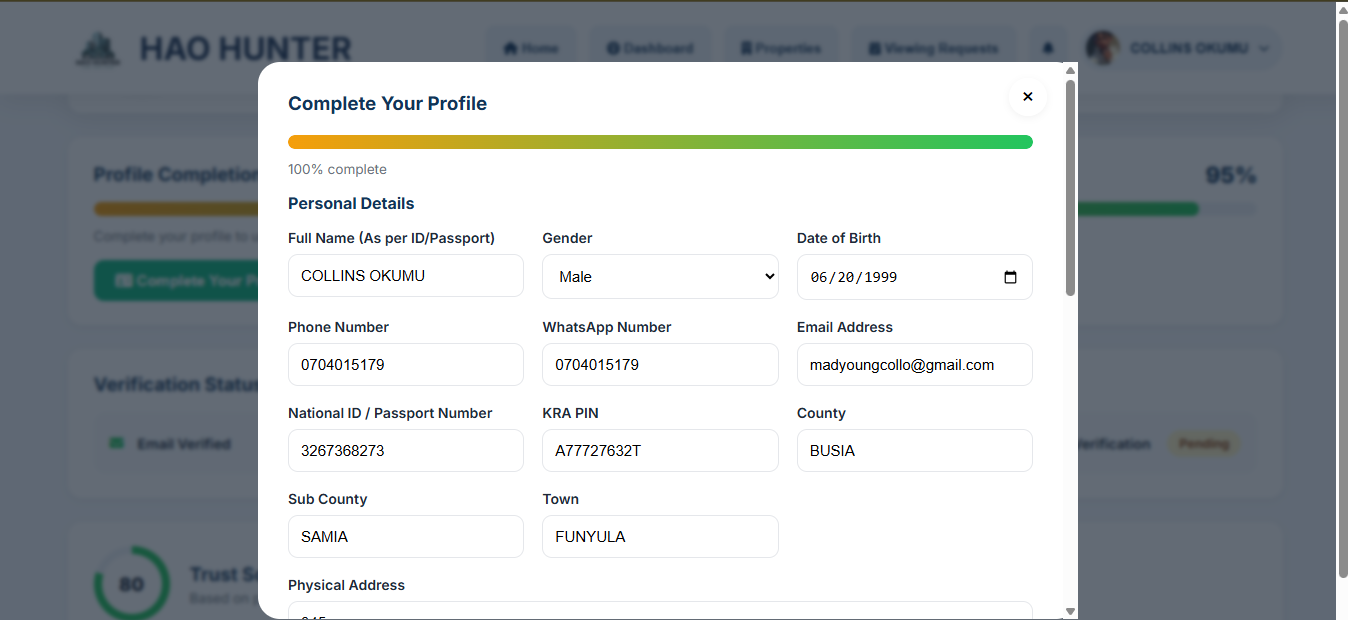
The progress bar at the top fills in as you go. You need 100% before you can submit for review.
4 Upload your documents
Still inside your profile, upload the following. Accepted formats: JPG, PNG, WebP or PDF, up to 2MB each.
*Only required if it applies to how you own or manage the property.
5 Submit for review
Once your profile shows 100% and your documents are uploaded, click Submit for Review. Your status changes to Under Review, and an admin will check your details and documents.
6 Get verified
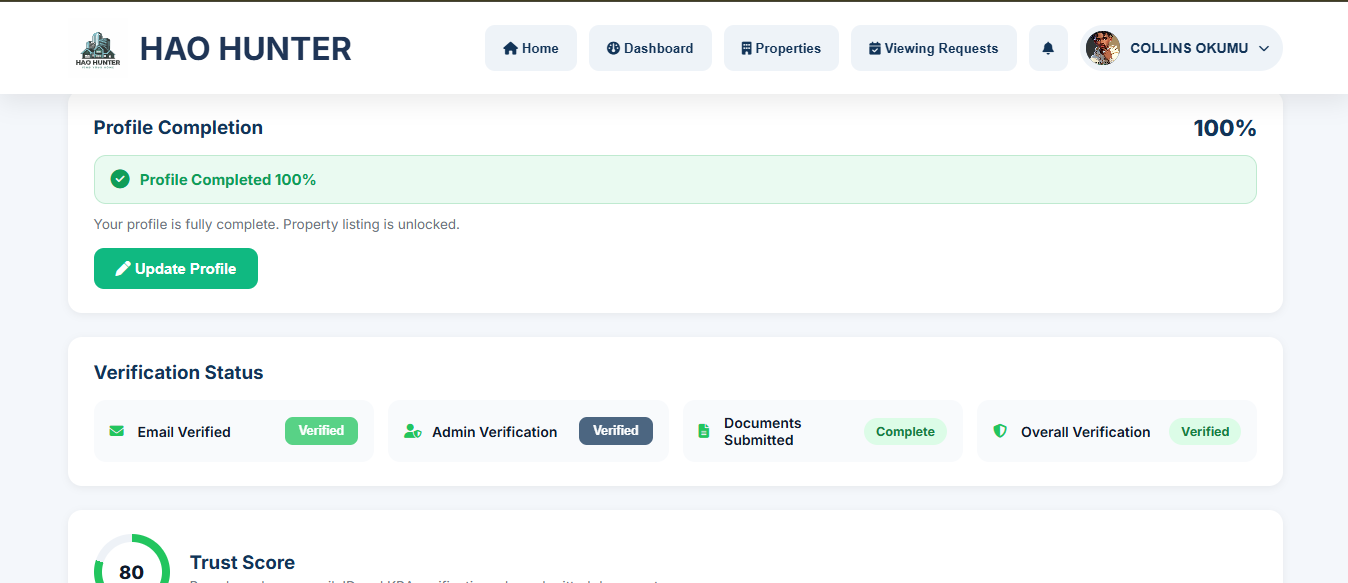
Once approved, all four checks on your Verification Status card turn green, and you'll see a message confirming property listing is unlocked.
7 Understand your dashboard
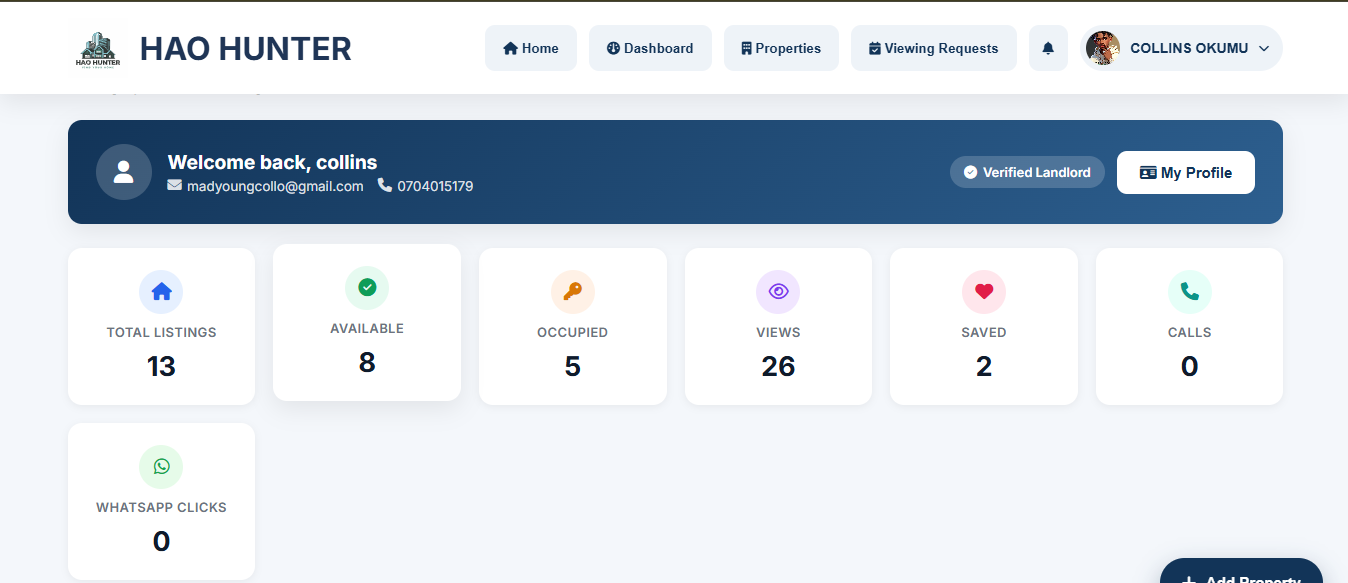
- Total Listings — every property you've posted
- Available / Occupied — how your listings are split right now
- Views — how many times tenants have opened your listings
- Saved — how many tenants have saved your properties to their list
- Calls and WhatsApp Clicks — how tenants are reaching out to you directly
8 Add your first property
Click + Add Property from your dashboard. Fill in the property's details — title, description, price, location, and type — then upload clear photos. The more complete and accurate your listing, the more views and enquiries it tends to get.
Once saved, it appears on your dashboard and becomes visible to tenants searching on Hao Hunter.
9 Manage your listings
From Properties in the top menu, you can edit any listing's details, update its photos, or change its status between Available and Occupied so tenants always see accurate information.
Check Viewing Requests regularly — that's where tenant requests to view a property land, and where you respond to confirm or decline a time.
10 Troubleshooting
Double check every field in Complete Your Profile is filled, and that all required documents are uploaded. You do not need to verify your phone number to reach 100% — that's not required.
Check Spam and Promotions folders first. If it's still missing after a few minutes, contact support — this can usually be resolved same-day.
This is reviewed manually, so it isn't instant. If it's been an unusually long time, reach out to support and we'll check on it.
The reason is shown directly on your Verification Status card. Fix the specific issue mentioned and submit again — you don't need to redo your whole profile.
Reach out through the Help page or WhatsApp us directly — include your registered email so we can look you up quickly.